How to Resize Images Online (Change Width & Height Without Losing Quality)
If you’re looking for how to resize images online without losing quality, you’re in the right place. Large image dimensions can slow down your website, break layouts, or make uploads difficult—especially on mobile devices.
With the right tool, you can change image width and height easily while keeping your images sharp and clear.
Reduce Image Size Online (Quick Solution)
👉 Use our free online image compressor here: [Compress Your Image Now]
Plotterwave image resizer automatically resizes uploaded images and then displays them for download to the user. It resizes your image based on pre – defined social network image sizes. You will then be able to download either chosen or all resized images.
Privacy is assured
All the processes involved in resizing your image is done in your device and no server was contacted, Which means your data never left your device and is well intact.
Our free online image resizer also has the following features: Resize Image, Crop Image, Flip Image, Rotate Image
This tool allows you to:
- Reduce image size instantly
- Maintain high image quality
- Compress JPG, PNG, and WebP files
- Use it on mobile or desktop
Step-by-Step: How to Reduce Image Size Without Losing Quality
Follow these simple steps:
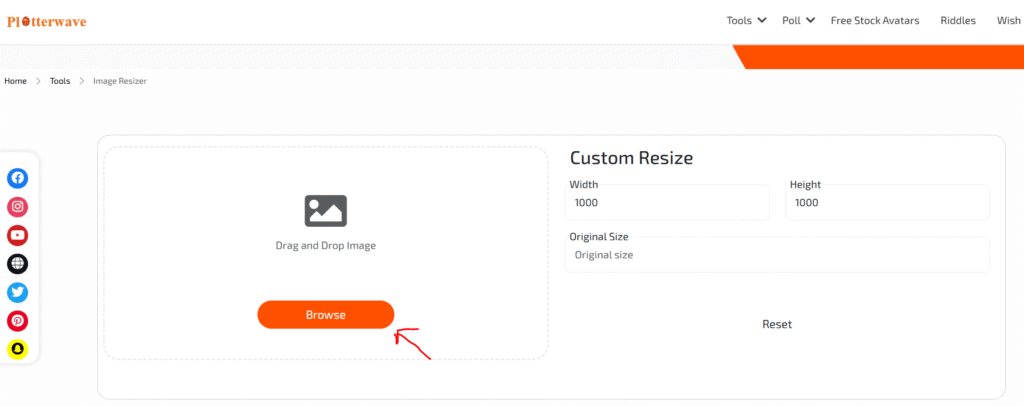
Step 1: Upload Your Image
Go to the image resizer tool and click on browse to upload your file (JPG, PNG, or WebP).
Step 2: Wait a Few Seconds
The tool processes your image using smart optimization.
Step 3: Use the Custom Resize
Make use of the custom resize, enter the width and height you want
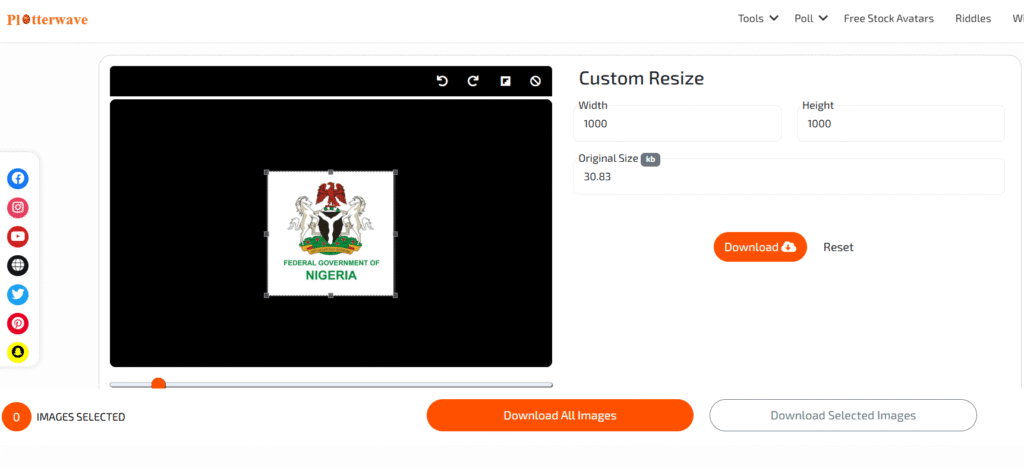
Step 4: Download Your Image
Download the compressed version—smaller in size but with the same visual quality.
👉 You can also compress your image here: [Free Image Compressor Tool]
Why Resizing Images Matters
Faster Website Loading
Large image dimensions can slow down your site. Resizing images improves loading speed and performance.
Better Layout Control
Correct image dimensions ensure your website or design looks clean and professional.
Improved SEO Performance
Properly sized images help your pages load faster, which can improve rankings on Google.
Easier Sharing
Resized images are easier to upload and share across WhatsApp, email, and social platforms.
Best Image Formats for Resizing
- JPEG/JPG → Best for photos
- PNG → Best for graphics and transparent images
- WebP → Best for modern web optimization
You can resize JPG, PNG, or WebP images without losing quality when using the right tool.
Tips to Resize Images Without Losing Quality
- Maintain aspect ratio to avoid distortion
- Avoid enlarging small images (causes blur)
- Use recommended dimensions (e.g., 1080px for Instagram)
- Choose the right format (JPG for photos, PNG for graphics)
- Preview before downloading
Related Guide
If you want a dedicated tool, check:
👉 Free Image Compressor Online (No Quality Loss) – Best Tool 2026
Frequently Asked Questions (FAQs)
Can I resize an image without losing quality?
Yes, as long as you reduce dimensions (not enlarge), quality can be preserved.
What is the best size for images online?
It depends on usage—1080px is common for social media, while websites may use 1200px or more.
Does resizing reduce file size?
Yes, smaller dimensions usually result in smaller file sizes.
Can I resize images on my phone?
Yes, online image resizer tools work perfectly on mobile browsers.
What happens if I increase image size?
Enlarging images can cause blur or pixelation if the original resolution is low.
Conclusion
Knowing how to resize images online without losing quality helps you maintain clean layouts, improve performance, and optimize images for different platforms.
Whether you’re designing for web, social media, or personal use, resizing images correctly ensures the best results.
Try the free image resizer now and adjust your images instantly.